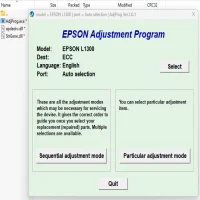


Latest Version
January 02, 2025
Artisan Series
Windows
7
Report a Problem
More About Epson Artisan 720 printer Adjustment Program
Epson Artisan 720 Printer Adjustment Program: A Comprehensive Guide
The Epson Artisan 720 is a versatile all-in-one printer designed to cater to the needs of both home users and small offices. With its ability to print high-quality photos, scan documents, and make copies, the Artisan 720 stands out as a reliable printer. However, like any other printer, it may sometimes require adjustments to maintain optimal performance. This is where the Epson Artisan 720 Printer Adjustment Program comes into play.
In this article, we'll explore what the Epson Artisan 720 Adjustment Program is, why it’s important, and how you can use it effectively.
What is the Epson Artisan 720 Printer Adjustment Program?
The Epson Artisan 720 Printer Adjustment Program is a utility that allows users to reset, calibrate, and fix common printing problems. It is especially useful for addressing issues related to ink levels, print head alignment, waste ink counter, and other maintenance aspects that are not easily managed through the printer’s regular interface.
When printers like the Epson Artisan 720 experience technical difficulties, such as paper jams, printing quality issues, or improper ink distribution, the adjustment program provides an accessible solution. It can help users perform a variety of tasks without needing to contact customer support or take the printer to a repair shop.
Key Features of the Epson Artisan 720 Adjustment Program
Ink Waste Counter Reset: Over time, a printer accumulates ink during cleaning cycles, which is stored in the waste ink counter. This accumulation can lead to errors or poor performance if not addressed. The Epson Artisan 720 Adjustment Program allows you to reset the waste ink counter, preventing error messages and ensuring smooth operation.
Print Head Alignment: Misalignment of the print head is a common issue that can cause blurry prints or uneven ink distribution. The adjustment program lets you realign the print head to ensure sharp, accurate prints.
Nozzle Check and Cleaning: This feature helps you identify clogged nozzles that may affect print quality. The program provides an option to perform a nozzle cleaning, ensuring that ink flows correctly through the print head.
Printer Calibration: Over time, the printer's color output may become inaccurate. The Epson Artisan 720 Adjustment Program helps you recalibrate the printer to restore accurate color reproduction, especially for photo prints.
Printer Mode Reset: If you experience issues related to printer modes, such as error messages or connectivity problems, the program allows you to reset the printer settings to factory defaults.
How to Use the Epson Artisan 720 Adjustment Program
Before using the Epson Artisan 720 Adjustment Program, ensure that you have a working connection between your printer and computer. Follow these steps:
Download the Adjustment Program: The official Epson Artisan 720 Printer Adjustment Program is not typically available through standard printer software installations. You will need to download it from a reliable source online. Make sure to download the program compatible with your operating system.
Install the Program: Once downloaded, extract the program files and run the installer. Follow the on-screen instructions to complete the installation.
Connect the Printer: Ensure that your Epson Artisan 720 printer is turned on and connected to your computer via USB or wireless network.
Launch the Program: Open the adjustment program on your computer. You will be prompted to select your printer model and connection type.
Select the Desired Adjustment: The program will present you with a list of maintenance tasks. Choose the specific adjustment you need (e.g., print head alignment, ink waste reset) and follow the prompts.
Execute the Adjustment: After selecting the adjustment, the program will guide you through the process. Depending on the task, the printer may automatically restart or perform necessary actions such as cleaning the print head.
Complete the Process: Once the adjustment is complete, exit the program and test the printer. You may want to print a test page or perform a nozzle check to ensure that the adjustment has resolved any issues.
Common Problems Solved by the Epson Artisan 720 Adjustment Program
- Ink Quality Issues: The adjustment program can fix print head misalignment, color accuracy issues, or ink distribution problems.
- Waste Ink Overflow: If your printer encounters errors related to waste ink overflow, the program allows you to reset the waste ink counter and prevent printer errors.
- Print Speed Problems: The program can help optimize your printer's performance by performing necessary calibrations and resets.
- Clogged Print Head: Nozzle cleaning and alignment help resolve issues with clogged nozzles that often lead to faded or streaked prints.
Conclusion
The Epson Artisan 720 Printer Adjustment Program is an essential tool for anyone who wants to maintain their printer's peak performance without the need for professional assistance. Whether you’re dealing with print head alignment, ink waste, or calibration issues, the program provides a straightforward and effective solution.
By following the steps outlined in this article, you can easily download, install, and use the Epson Artisan 720 Adjustment Program to keep your printer in top working condition. Regular use of the program can extend the lifespan of your printer and ensure that it consistently delivers high-quality prints.
Rate the App
User Reviews


Popular Apps