Latest Version
More About Epson Expression Home XP-225 Resetter
Epson Expression Home XP-225 Resetter: A Guide for Efficient Printer Resetting
The Epson Expression Home XP-225 is a compact and versatile all-in-one inkjet printer designed for home and small office use. However, like many printers, users occasionally encounter issues such as ink waste pads reaching their limit, error messages, or performance inconsistencies. In such cases, a printer reset may be required to restore its full functionality. This is where a resetter tool comes in handy. Below is an in-depth guide on the Epson Expression Home XP-225 Resetter.
What is a Resetter for Epson Expression Home XP-225?
A resetter is a software tool that helps to reset various printer components, especially the waste ink pads. Ink pads are responsible for absorbing excess ink during printing processes such as cleaning cycles. Over time, these pads can fill up and trigger error messages on the printer, which can stop the printer from functioning. The Epson Expression Home XP-225 Resetter helps to bypass these errors and reset the printer’s waste ink pad counter.
Why You Might Need a Resetter for the Epson XP-225
Here are a few common situations where resetting your Epson Expression Home XP-225 may be necessary:
-
Waste Ink Pad Error: One of the most frequent issues with Epson printers is the waste ink pad reaching its capacity. When this happens, the printer might display an error message like "Ink Pads are at the end of their service life," which halts printing.
-
Firmware Errors: If the printer encounters software glitches, misconfigurations, or other firmware-related issues, a reset can restore it to factory settings.
-
Printing Inconsistencies: If your prints start to show signs of reduced quality or incomplete printing, resetting the printer could solve the problem by clearing out internal settings.
-
Slow Performance: If the printer is acting sluggish or not performing its tasks effectively, a reset may help improve speed and accuracy.
How to Use the Epson Expression Home XP-225 Resetter Tool
To reset your Epson XP-225, you'll need the correct software tools, which are often available as third-party resetter programs. These tools are designed to access the internal firmware of your printer, allowing you to reset the error counters and restore normal operations. Follow these general steps for resetting:
1. Download the Resetter Tool
Search for a reliable Epson XP-225 resetter tool online. Make sure to use trusted sources to avoid malicious software. Many of these tools come in a simple .exe file format for Windows or a .dmg file for macOS.
2. Install the Tool
Once downloaded, install the tool on your computer by following the on-screen instructions. Ensure that the printer is connected to your computer via USB or Wi-Fi.
3. Run the Resetter Program
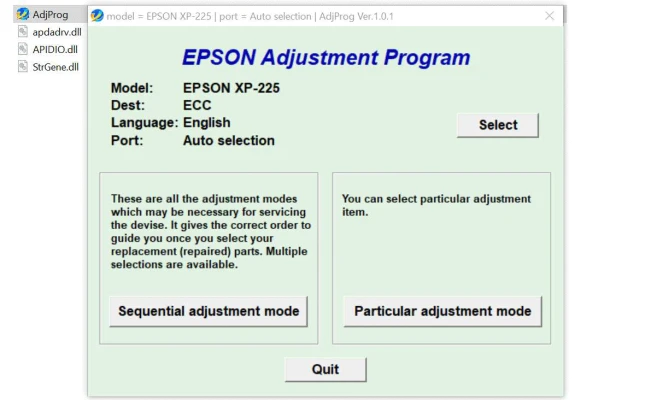
Launch the resetter program. In most cases, the program will automatically detect your connected Epson XP-225 printer.
4. Select the Reset Option
From the program’s interface, look for options like "Waste Ink Pad Reset" or "Initialization." Follow the instructions provided in the program to reset the ink pad counters.
5. Wait for the Process to Complete
After selecting the reset option, the tool will perform the necessary tasks. It will reset the waste ink pad counter or other settings, depending on your issue. This may take a few minutes.
6. Test the Printer
Once the reset is complete, turn the printer off and then on again. You should no longer see the error message, and your printer should resume normal operation.
Precautions When Using the Resetter Tool
While the Epson XP-225 Resetter can solve many common printer issues, it’s important to use it carefully. Here are some essential precautions:
-
Avoid Overusing the Reset Function: Constantly resetting your printer can result in more ink waste and potential long-term damage.
-
Check Ink Pads Regularly: Resetting the counter doesn’t address the physical ink pad's condition. If your printer has been in use for an extended period, the pads may be full, and a reset won’t prevent potential ink overflow.
-
Backup Your Printer Settings: Before using any resetter tool, make sure to back up any important printer settings if possible.
Conclusion
The Epson Expression Home XP-225 Resetter is a valuable tool for resolving common printer issues, such as waste ink pad errors, software glitches, and performance slowdowns. By following the correct steps to reset your printer, you can keep it functioning smoothly for longer. However, it’s crucial to use resetter tools carefully and not rely on them excessively. Always monitor the physical condition of your printer to avoid future complications.
Rate the App
User Reviews




Popular Apps