Latest Version
More About Epson Expression Home XP-206 Resetter
Epson Expression Home XP-206 Resetter: A Comprehensive Guide
The Epson Expression Home XP-206 is a popular all-in-one printer designed for home and small office use. Its compact design, reliable performance, and affordability make it a favorite choice among users. However, like many Epson printers, the XP-206 includes an ink pad counter that, when full, can prevent the printer from functioning properly. Resetting the printer becomes essential to restore its performance. This article provides a unique and detailed guide on how to reset your Epson Expression Home XP-206 effectively.
Why Resetting Is Necessary
Epson printers use internal ink pads to collect excess ink during printing and cleaning cycles. Over time, these pads reach their limit, triggering an error message stating that the printer requires service. The printer stops functioning to prevent ink leakage. Resetting the printer resets the internal ink pad counter, allowing the device to resume operation.
Steps to Reset Epson Expression Home XP-206
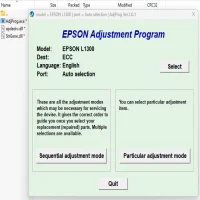
Resetting your printer requires the Epson Adjustment Program (or a compatible reset tool). Follow these steps carefully to reset your printer:
Step 1: Download the Epson Adjustment Program
- Look for a reliable source to download the Epson Adjustment Program compatible with the XP-206. Ensure that the file is free of malware or viruses.
- Extract the downloaded file into a dedicated folder for easy access.
Step 2: Prepare Your Printer
- Turn off the Epson Expression Home XP-206 and ensure it is connected to your computer via USB cable.
- Restart your printer to ensure it is in its default state before proceeding.
Step 3: Install and Run the Program
- Open the Epson Adjustment Program file.
- Select your printer model (Epson Expression Home XP-206) and the port where your printer is connected.
- Click on "Particular Adjustment Mode" to access advanced reset features.
Step 4: Reset the Ink Pad Counter
- In the menu, choose the "Waste Ink Pad Counter" option.
- Click "Check" to view the current status of the ink pad counter.
- Select "Main Pad Counter" and then click "Initialize."
- Follow the on-screen prompts to complete the reset process. The printer will restart automatically.
Step 5: Test Your Printer
- Once the printer restarts, print a test page to confirm the reset was successful.
- If the error message persists, repeat the process, ensuring all steps are followed correctly.
Precautions and Tips
- Regular Maintenance: Resetting the ink pad counter does not replace the need for proper maintenance. Once the ink pads are full, they should be replaced to avoid overflow.
- Backup Files: Always download programs from trusted sources to avoid corrupting your printer or computer with malicious software.
- Legal Use: Use the reset program for personal purposes only, as unauthorized software might violate Epson's terms of service.
Conclusion
The Epson Expression Home XP-206 reset process is a simple yet effective way to extend the life of your printer without incurring additional costs. By following the steps outlined in this guide, you can quickly resolve ink pad counter errors and return to printing seamlessly. However, remember to maintain your printer regularly and replace ink pads when needed to ensure optimal performance and longevity.
Rate the App
User Reviews




Popular Apps