Latest Version
More About Epson Expression Home XP-222 Resetter
Epson Expression Home XP-222 Resetter: A Comprehensive Guide
The Epson Expression Home XP-222 is a popular all-in-one printer that serves the needs of home offices and small businesses. With features such as wireless printing, high-quality photo printing, and compact design, it's an excellent choice for users looking for reliability and efficiency. However, like many printers, the XP-222 may eventually experience issues, especially when it comes to the printer’s internal memory and ink pads. This is where the Epson Expression Home XP-222 Resetter comes in, a tool that helps reset and resolve certain printer errors. In this article, we'll explore the Epson XP-222 reset process and explain why it's necessary.
What is an Epson Expression Home XP-222 Resetter?
An Epson printer reset tool, or "resetter," is a software utility designed to clear the printer’s error codes and restore it to its factory settings. For the Epson Expression Home XP-222, a reset tool can help resolve common issues like the "Waste Ink Pad" error, where the printer stops functioning due to the accumulation of waste ink. Over time, printers use up ink during cleaning cycles, and the ink pads absorb excess ink. When these pads become full, the printer may display an error message indicating the need for a reset or servicing.
The XP-222 resetter works by reprogramming the printer to bypass or reset the waste ink counter, allowing the printer to resume normal operation. The reset process is usually simple but requires some technical knowledge and careful handling.
Why Do You Need a Resetter for the Epson Expression Home XP-222?
There are several scenarios where an Epson XP-222 resettter might be necessary:
-
Waste Ink Pad Error: One of the most common issues that users face with Epson printers is the waste ink pad reaching its limit. When this happens, the printer will stop working and display an error message. The reset tool helps by resetting the ink pad counter, allowing the printer to continue functioning.
-
General Printer Errors: Sometimes, Epson printers may encounter errors or malfunctions due to incorrect settings, software glitches, or hardware failures. A reset tool can clear these errors and restore the printer to its default settings.
-
Software Issues: Over time, the printer’s software may become outdated or corrupted. A resettter can clear the software issues, helping the printer run smoothly once again.
-
Cost-Effective Solution: Instead of taking the printer to a service center, using a reset tool is an affordable way to fix many common problems, saving both time and money.
How to Use the Epson Expression Home XP-222 Resetter?
Before proceeding with the reset, it’s important to follow the steps carefully to avoid any damage to your printer. Here’s a step-by-step guide to using the Epson XP-222 resettter:
1. Download the Resetter Tool:
- You need to download the appropriate reset software for the Epson XP-222. Ensure that you download it from a trusted source to avoid malicious software.
2. Install the Software:
- After downloading the reset tool, install the software on your computer. Make sure you follow the installation instructions carefully.
3. Connect the Printer:
- Ensure that your Epson Expression Home XP-222 is properly connected to your computer via USB or Wi-Fi. Make sure the printer is powered on.
4. Launch the Resetter Tool:
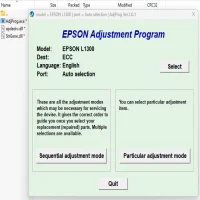
- Open the reset tool on your computer and wait for it to recognize the connected printer.
5. Select the Resetter Option:
- Within the software, choose the reset function that corresponds to your issue. For example, select "Waste Ink Pad Reset" if you're encountering the waste ink pad error.
6. Perform the Reset:
- Click on the reset button to begin the process. Follow any additional prompts provided by the software. Once the reset is complete, the printer will display a confirmation message.
7. Test the Printer:
- Once the reset is done, perform a test print to ensure everything is functioning as expected.
Important Considerations
-
Backup Your Data: While performing a reset, some settings might be erased. It’s a good idea to back up any important data or custom settings before proceeding with the reset.
-
Use Resetters Cautiously: While using a reset tool is often safe, it's essential to download it from a reputable source. Some reset tools could contain harmful software that could damage your system or void your printer warranty.
-
Limitations: A reset tool can only fix certain types of errors. If your printer has a hardware problem, such as a broken print head or faulty mechanism, a reset tool won't be able to solve those issues.
Conclusion
The Epson Expression Home XP-222 is a dependable printer for home use, but like all devices, it may require troubleshooting over time. A resettter tool can help fix common problems, such as the waste ink pad error, without the need for expensive repairs. By following the instructions above, you can use the Epson XP-222 resettter effectively and keep your printer in good working order. However, always ensure you're using legitimate reset software and proceed with caution to avoid any unintended damage.
Rate the App
User Reviews




Popular Apps